

Prompting
Name the audience and the decision. Compare two asks against the same data:- “Visualize this” → a chart of whatever column looks most numeric
- “Build a one-pager for our 3PL showing which SKUs are below reorder point, sorted by days of cover” → the right rows, the right sort, the right framing
“Build a carrier performance dashboard: KPI tiles for on-time rate, average transit, and total spend, a filter bar for carrier and month, and a searchable table underneath. Let me click a shipment to open its full tracking history.”That single ask produces the tiles, the filter bar, the table, and the drill-down panel. Every control works instantly on data from the latest run, and viewers can download a CSV of whatever they’ve filtered to. Ask for the controls you want. Filter bars, search boxes, tabs, toggles, sliders, sortable columns, drill-downs, and expand or collapse on grouped rows. Name them, or describe the behavior and let Prowork choose: “let me click a carrier and see just their shipments.” Iterate instead of rewriting. Follow-up prompts adjust the Artifact you already have: “move the totals to the top,” “add a date filter,” “swap the pie chart for a bar chart.”
Styling
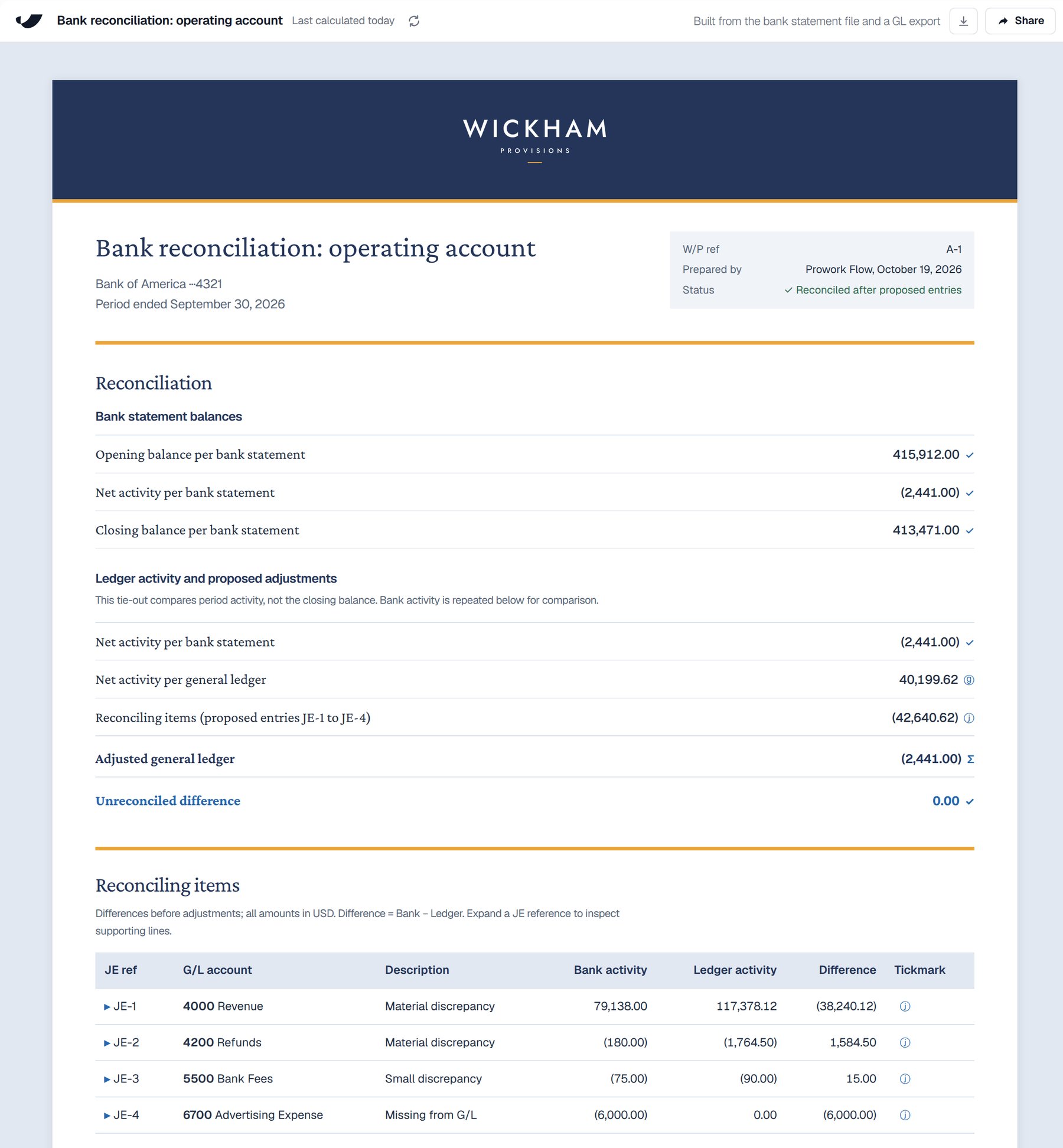
Every Artifact ships with default styles, so it looks polished from the first run. Describe the look. Colors, fonts, spacing, general feel. “Use our brand green for positive variance and grey for everything else.” Or upload a reference. A brand guide, a screenshot of an existing report, or a PDF of the dashboard this is replacing. Prowork builds toward it. Add your own images. Attach an image in the chat and tell Prowork where it goes: “put this diagram above the summary,” “add the product photo to the item detail panel.” It travels with the Artifact, appearing on the canvas, in the result modal, and in a shared link. PNG, JPEG, WebP, and GIF, up to 1 MB each. Use your company logo. If an admin has uploaded a logo under Company branding, ask Prowork to add it. It renders everywhere your own images do, plus the PDF. Swap the logo later and Artifacts pick up the new one on their next run.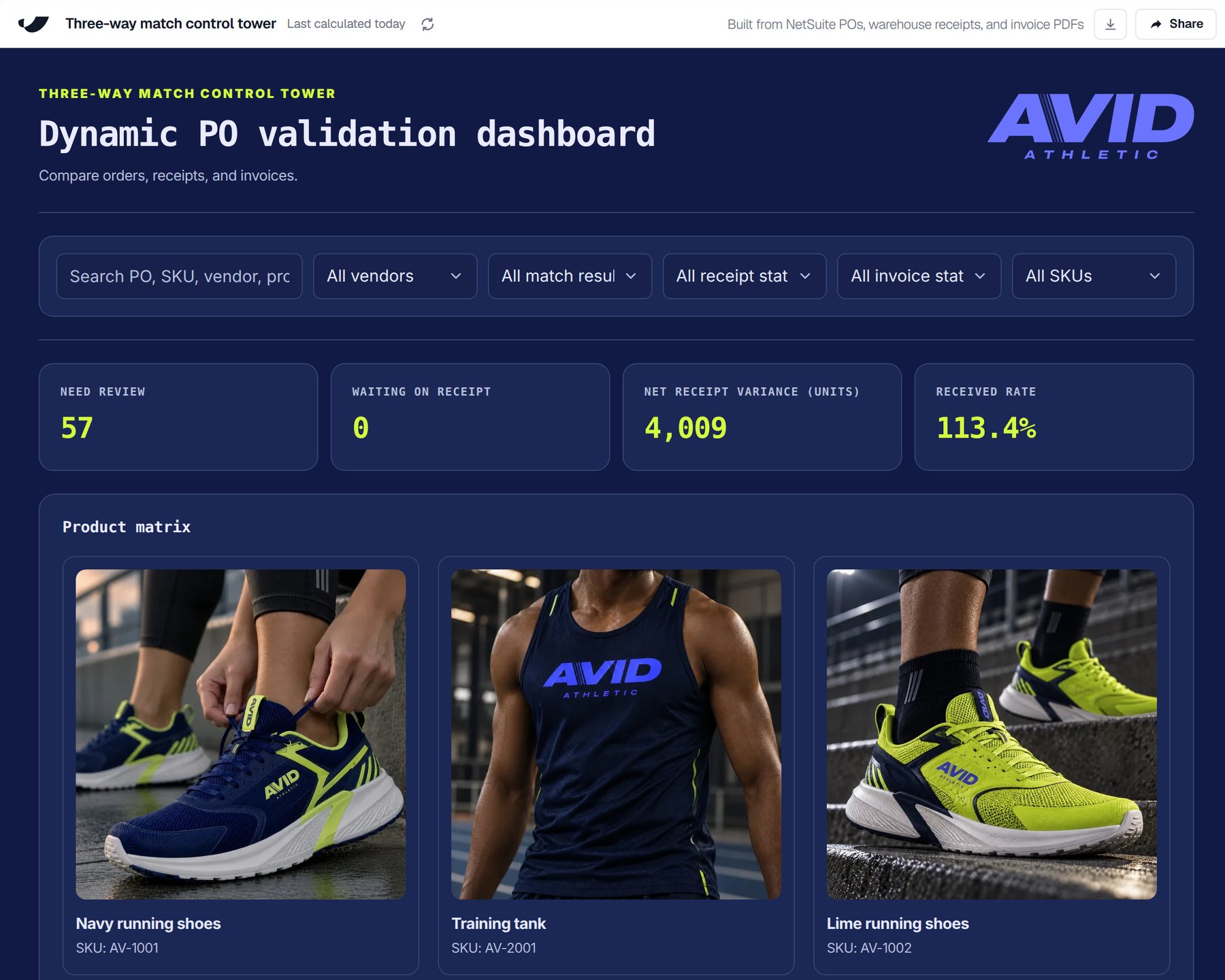
Three uploads, three different jobs. A reference shapes how the Artifact looks and never appears in it. An image you attach is placed in the Artifact itself. The company logo is set once by an admin, so nobody re-uploads it per Artifact.
Editing
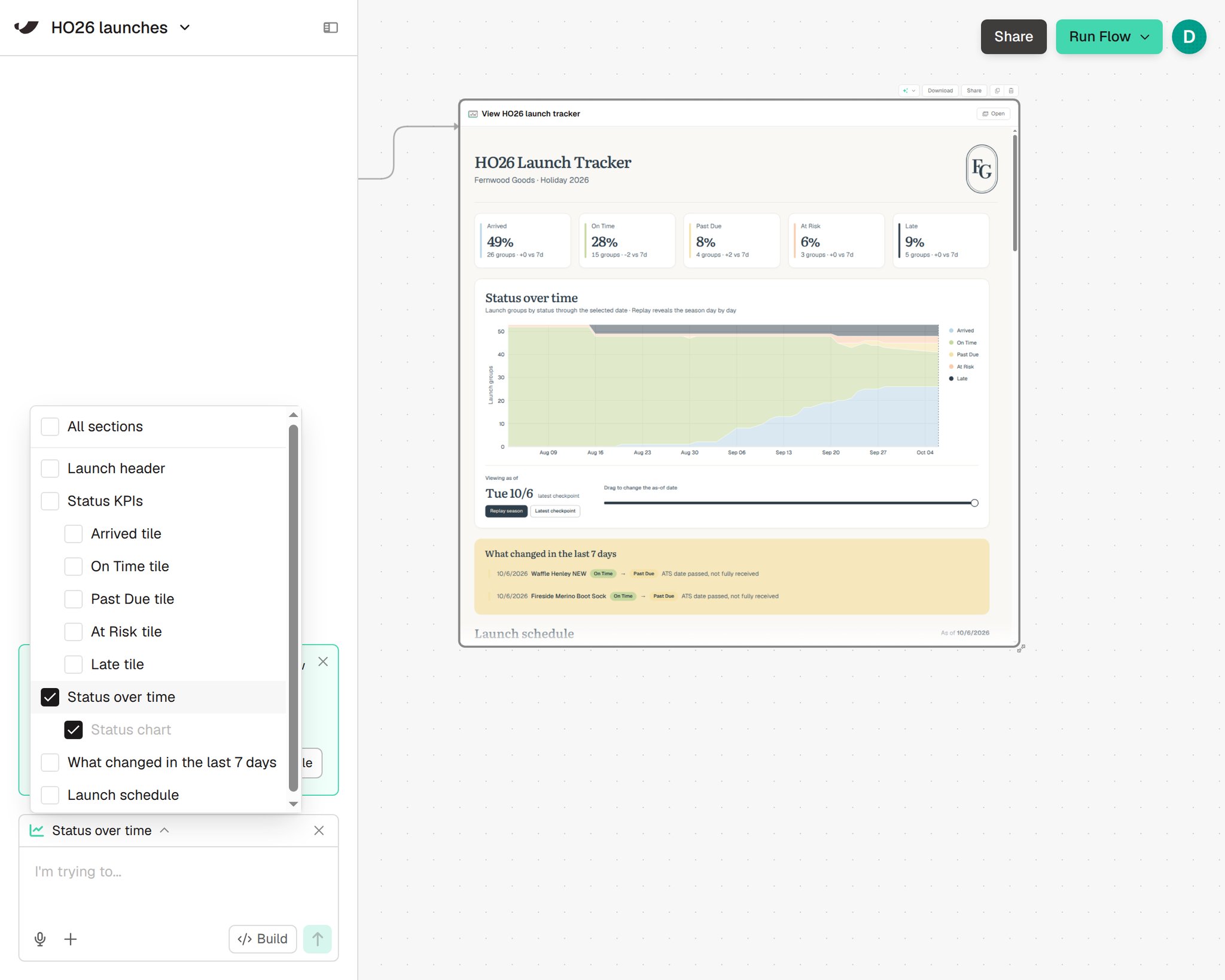
Edit with Prowork. Open the Artifact and click the pencil icon in its header. Click any part of the Artifact, describe the change in Ask for changes, and click Send. Prowork gets your request in chat along with the part you selected. You stay in edit mode after each edit, so you can keep selecting parts and queue up more changes while Prowork works. To use the Artifact normally, hold Option (Alt on Windows), or switch back to View with the eye icon.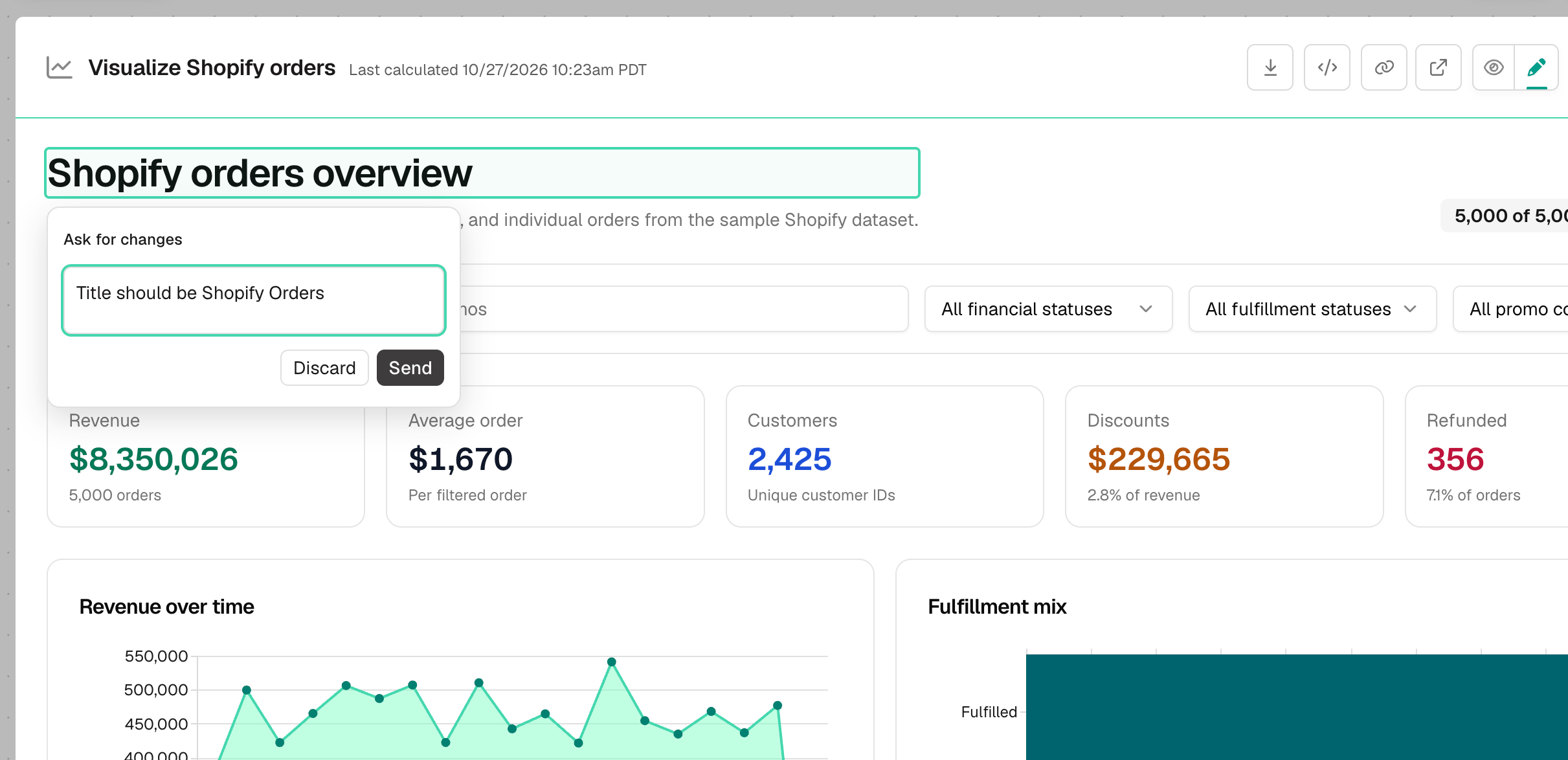
Next: Sharing artifacts
Share an Artifact as a live link and control who can see it.